The Kindle Paperwhite 11th Gen isn't just an e-reader; it's a portal to countless worlds, packed into a sleek, water-resistant device. But are you truly maximizing its potential? Many owners simply open a book and start reading, unaware of the hidden gems and powerful customizations that transform a good reading experience into an exceptional one. This comprehensive guide on Kindle Paperwhite 11th Gen Tips, Tricks & How-Tos is designed to pull back the curtain, helping you unlock every feature and truly make your e-reader work for you.
Imagine effortlessly scheduling your warm light for perfect bedtime reading, diving into an audiobook without touching your phone, or sending personal documents directly to your device with a few taps. From enhancing readability to securing your privacy and even browsing the web, your Paperwhite 11th Gen is capable of far more than you might think. Let's dig in and discover its full capabilities.
At a Glance: Your Paperwhite 11th Gen's Core Strengths
- Immersive Display: A 6.8-inch, 300 PPI, glare-free screen that reads like real paper, even in direct sunlight.
- Comfortable Reading: Adjustable warm light to shift screen tone from white to amber, reducing eye strain.
- Long-Lasting Power: Up to 10 weeks of battery life on a single charge.
- Faster Performance: 20% quicker page turns for a smoother reading flow.
- Waterproof Design: IPX8 rating means it can withstand accidental dunks in the tub or at the beach.
- Audiobook Ready: Bluetooth connectivity for listening to Audible titles.
- Family-Friendly: Features like Amazon Kids and parental controls for managing children's reading.
Why the Kindle Paperwhite 11th Gen Shines: More Than Just a Book
Amazon’s Kindle Paperwhite 11th Generation stands out as one of the most responsive and feature-rich e-readers to date. It strikes a fantastic balance between advanced technology and user-friendly design, making it a favorite for everyone from avid readers to those just dipping their toes into digital books. The improved 6.8-inch display with thinner borders offers a more expansive view of your content, while the 300 PPI resolution ensures text is crisp and clear, indistinguishable from a printed page.
One of its most beloved features is the adjustable warm light, which allows you to customize the screen's hue from bright white to a soft amber. This is a game-changer for evening reading, significantly reducing eye strain and helping you wind down before bed. Couple that with a remarkable 10-week battery life and a 20% boost in page-turn speed, and you have a device that's truly built for uninterrupted immersion. Its flat-front design and IPX8 water resistance mean you can confidently read anywhere, from a bustling cafe to a relaxing bubble bath. But the magic doesn't stop at reading; the Kindle Paperwhite 11th Gen also supports audiobooks, letting you pair Bluetooth headphones or speakers to enjoy your Audible library. If you want to explore all the nitty-gritty details of this device, our guide on Everything Kindle Paperwhite 11th Gen has you covered.
Getting Started: Your First Steps with a New Kindle
Unboxing your new Paperwhite is exciting, but a few initial setup steps ensure a smooth experience. Once powered on, you'll connect to Wi-Fi and log in with your Amazon account. This immediately links your device to your existing Kindle library and Audible account, if you have one. The initial setup is straightforward, prompting you through essential configurations. Don't worry if you rush through it; most settings can be tweaked later.
Customizing Your Reading Experience: Tailor-Made Comfort
Your Kindle isn't a one-size-fits-all device; it's designed to adapt to your preferences. These tips will help you fine-tune its behavior for maximum comfort and immersion.
Setting Your Warm Light Schedule for Better Sleep
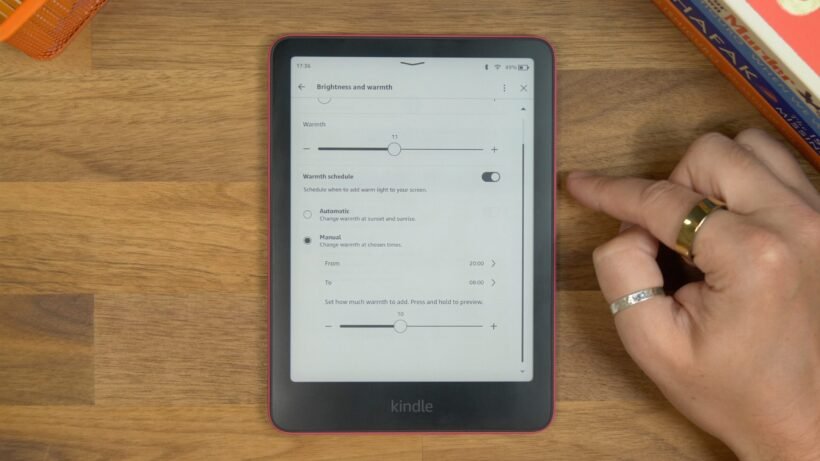
The warm light feature is a true marvel for readers. Instead of manually adjusting it every evening, you can set it to automatically change with the time of day. This subtle shift from cool to warm light mimics natural daylight cycles, potentially improving your sleep patterns.
How to do it:
- From the Home screen, tap the Settings icon (gear) at the top.
- Select Screen and Brightness.
- Tap on Brightness and Warmth.
- Find Warmth Schedule and choose between Automatic (it adjusts based on your local sunrise/sunset) or Custom to set specific on/off times. You can also manually adjust the warmth slider here anytime.
Reading in Landscape Mode: A Wider View
Sometimes, a different orientation can make a big difference, especially for certain book layouts or when you simply want a wider field of view. Switching to landscape mode can also be more comfortable if you're resting your Kindle on a surface.
How to do it:
- While reading a book, tap the top part of the screen to bring up the reading toolbar.
- Tap the ‘Aa’ icon (Font & Page Settings).
- Go to the Layout tab.
- Under Orientation, select the landscape icon.
Adding a Touch of Flair: Page Turn Animation
A small, subtle animation when you turn pages might seem minor, but it can make the digital reading experience feel a little more like turning a physical page. It's a matter of personal preference, but many find it adds a nice polish.
How to do it:
- While reading a book, tap the top part of the screen.
- Tap the ‘Aa’ icon.
- Go to the More tab.
- Toggle Page-Turn Animation to "On."
Always See the Time: Keeping Track While Lost in a Book
It's easy to lose track of time when engrossed in a good story. Enabling the clock display in the corner of your screen can keep you grounded without pulling you completely out of your book.
How to do it:
- While reading a book, tap the top part of the screen.
- Tap the ‘Aa’ icon.
- Go to the More tab.
- Toggle Show Clock While Reading to "On." The time will appear subtly in the upper right corner.
Word Wise: Understanding Tricky Vocabulary
For those learning a new language, reading challenging texts, or simply wanting to expand their vocabulary, Word Wise is an invaluable tool. It displays simple definitions or synonyms above difficult words, so you don't have to break your reading flow to look them up.
How to do it:
- While reading a book, tap the top part of the screen.
- Tap the ‘Aa’ icon.
- Go to the More tab.
- Toggle Word Wise to "On."
- You can adjust the aggressiveness of the hints by tapping the Word Wise text at the bottom of the screen when it's active in your book.
Navigating Your Library Like a Pro: Find Your Next Read Faster
A vast library is a joy, but only if you can navigate it efficiently. These tricks help you organize and find exactly what you're looking for.
Filtering for Unread Books: Discover What's New
With hundreds of books on your Kindle, it can be hard to remember which ones you haven't started yet. Filtering your library to show only unread titles is a quick way to pick your next adventure.
How to do it:
- From the Home Screen, go to the Library tab.
- Tap the filter icon (it usually looks like three lines with circles).
- Select Unread. Your library will now only display books you haven't opened yet.
Disabling Series Grouping: See Every Book Individually
While grouping books by series can be neat for some, others prefer to see every title individually in their library. If you like a less clustered view, this setting is for you.
How to do it:
- From the Home screen, tap the Settings icon (gear).
- Select Home and Library.
- Go to the Library tab.
- Toggle off Group Series.
Beyond the Basics: X-Ray & Vocabulary Builder
Your Kindle offers powerful tools for deeper engagement with your books. X-Ray is like a backstage pass, letting you explore characters, specific ideas, and common phrases within a book. It’s perfect for understanding complex narratives or refreshing your memory about a character you haven't encountered in a while.
How to use X-Ray:
- While reading a book, tap the three-dots menu (More) in the upper right corner.
- Select X-Ray. You'll see options to explore Characters, Notable Clips, and Images.
Then there's the Vocabulary Builder. Every time you look up a word using the dictionary feature, your Kindle automatically adds it to the Vocabulary Builder. This creates a personalized learning tool, helping you reinforce new words and improve retention. To truly get the most out of this feature, check out our guide on getting the most out of Vocabulary Builder.
How to use Vocabulary Builder: - From the Home screen, tap the three-dots menu (More) in the upper right corner.
- Select Vocabulary Builder.
- Here, you can review words you've looked up, view them in flashcard mode, and even see the context in which you encountered them in your books.
Power Features for Serious Readers: Engage Deeply with Your Content
For those who like to interact with their texts, whether for study, reflection, or just remembering key passages, your Kindle is a powerful ally.
Making Notes and Highlighting Text: Your Digital Annotation Tool
Just like with a physical book, you can highlight important passages or add personal notes on your Kindle. These annotations are synced across your devices and can be easily reviewed later.
How to do it:
- To highlight, press and hold on a word. Drag your finger to select the desired text. A toolbar will pop up.
- Tap the Highlight option to mark the text in a chosen color.
- To add a note, after highlighting, tap the Note option (it looks like a sticky note or speech bubble). A keyboard will appear, allowing you to type your thoughts.
- To view your notes and highlights, tap the book icon (usually in the upper left or right corner of the toolbar while reading). This will show a summary of all your annotations in that book.
Instant Word Translation: Overcoming Language Barriers
Reading in a foreign language or encountering unfamiliar terms is made much easier with instant translation. No need for a separate dictionary or app; your Kindle has it built-in.
How to do it:
- While reading, press and hold on the word you want to translate.
- In the toolbar that appears, swipe to the Translation tab.
- Select your desired language, and the translation will appear.
Checking Reading Progress: Time Left in Your Book or Chapter
Curious how much longer until you hit the next chapter, or how many hours remain in your entire book? Your Kindle can estimate this based on your reading speed.
How to do it:
- While reading, tap the page number display in the lower left corner of the screen.
- Each tap will cycle through different metrics: page number, time left in chapter, time left in book, and location.
Beyond Books: Audiobooks & Documents
The Kindle Paperwhite isn't just for reading text; it's a versatile media consumption device.
Connecting Bluetooth Headphones for Audiobooks: Listen Anywhere
One of the fantastic features of the 11th Gen Paperwhite is its seamless integration with Audible audiobooks. You can switch between reading a book and listening to its audiobook version without missing a beat, especially useful for commutes or multitasking. If you're interested in really diving into the world of Kindle audiobooks, we have a dedicated guide for you.
How to do it:
- From the Home screen, tap the Settings icon (gear).
- Select Wi-Fi and Bluetooth.
- Tap Bluetooth Devices.
- Ensure your Bluetooth headphones or speaker are in pairing mode.
- Your Kindle will scan for devices. Select your device from the list to pair.
- Once paired, open an Audible audiobook from your library and play it.
Sending Your Own Documents to Kindle: Your Personal Library
Your Kindle isn't limited to Amazon purchases. You can send personal documents, PDFs, web articles, and more directly to your device, making it a central hub for all your reading material. This is particularly useful for students, professionals, or anyone who wants to optimizing your Kindle for document management.
How to do it:
There are several ways to send documents:
- Email: Find your unique "Send-to-Kindle" email address in Settings > Your Account. Then, simply email documents (like PDFs, Word docs, images, plain text) to that address from any registered email account.
- Web Browser: Visit amazon.com/sendtokindle on your computer and upload files directly.
- Kindle App: Use the "Share" functionality from any document or web page on your Mac, Windows, Android, or iPhone, and select the Kindle app. It will then prompt you to send to your Paperwhite.
Kindle for the Family: Amazon Kids & Parental Controls
The Paperwhite 11th Gen is robust enough for adults but also intelligently designed for younger readers. With Amazon Kids (formerly FreeTime) and parental controls, you can create a safe, curated reading environment. This allows kids to access age-appropriate books while you maintain oversight of their reading habits and screen time. For a deeper dive into mastering parental controls and Amazon Kids, check out our full guide.
How to set up Amazon Kids:
- From the Home screen, tap the Settings icon (gear).
- Select Amazon Kids.
- Follow the on-screen prompts to create a profile for your child, select content from your library, and set time limits or educational goals.
Essential Device Management & Security
Keeping your Kindle secure and functioning optimally is crucial for a smooth reading journey.
Securing Your Kindle with a PIN Code: Privacy First
Your Kindle holds your entire library, and potentially personal documents. Protecting it with a PIN ensures that your privacy is maintained, especially if your device falls into the wrong hands.
How to do it:
- From the Home screen, tap the Settings icon (gear).
- Select Device Options.
- Tap Privacy and Security.
- Choose Device PIN and follow the instructions to set a 4-digit (or longer) PIN.
Force Screen Refresh: Eliminating Ghosting
Kindle screens use e-ink technology, which is fantastic for readability but can sometimes leave faint "ghosts" of previous text or images. A full screen refresh clears this up completely, ensuring a pristine display. While modern Kindles do this automatically every few pages, you can force it on every page turn.
How to do it:
- From the Home screen, tap the Settings icon (gear).
- Select Reading Options.
- Toggle Page refresh to "On." Be aware this might slightly impact battery life and page-turn speed, as it uses more power for the full refresh.
Surfing the Basic Web Browser: A Hidden Utility
Yes, your Kindle has a web browser! While it’s basic and best suited for text-heavy sites, it can be a lifesaver for checking quick information, accessing Wikipedia, or reading online articles without distraction from multimedia.
How to do it:
- From the Home screen, tap the three-dots menu (More) in the upper right corner.
- Select Web Browser.
When Things Go Wrong: Troubleshooting & Resetting
Even the most reliable devices can sometimes encounter a snag. Knowing how to troubleshoot common issues can save you a trip to support, and a factory reset is a powerful last resort. For a more comprehensive look at troubleshooting common Kindle issues, refer to our dedicated guide.
Factory Resetting Your Kindle: The Ultimate Restart
A factory reset wipes your device clean, returning it to the state it was in when you first unboxed it. This can resolve persistent software glitches, remove corrupted files, or prepare your Kindle for a new owner. Warning: This will delete all your downloaded books and settings, so only use it if other troubleshooting steps fail. Your purchased books will remain in your Amazon cloud library and can be re-downloaded.
How to do it:
- From the Home screen, tap the Settings icon (gear).
- Tap the three-dots menu (More) in the upper right corner.
- Select Reset to factory default.
- Confirm your decision when prompted.
Your Journey to a Smarter Reading Experience
You've just unlocked a treasure trove of features and customizations for your Kindle Paperwhite 11th Gen. From improving comfort with warm light schedules to managing your personal documents and diving into audiobooks, these tips and tricks are designed to elevate your reading experience from good to truly exceptional. The beauty of the Kindle is its simplicity, but its true power lies in its hidden depths. Take these insights, experiment with the settings, and tailor your device to perfectly fit your reading life. Happy reading!